Get Full Government Meeting Transcripts, Videos, & Alerts Forever!
Get email alerts on the Education Technology topic
No spam. Unsubscribe anytime.
Berkeley County Schools staff explains how to view and set Schoology notifications
Summary
A staff member from Berkeley County Schools demonstrated how users can view, filter and customize Schoology notifications via the web (bcs.schoology.com) or the Schoology app, including email and text options.
A Staff member from Berkeley County Schools demonstrated how to view and customize notifications in Schoology, the district’s learning‑management platform, using the district web address bcs.schoology.com or the Schoology app.
The demonstration showed where notifications appear, how to filter them by type, and how to change delivery preferences so users can receive alerts by email or text message.
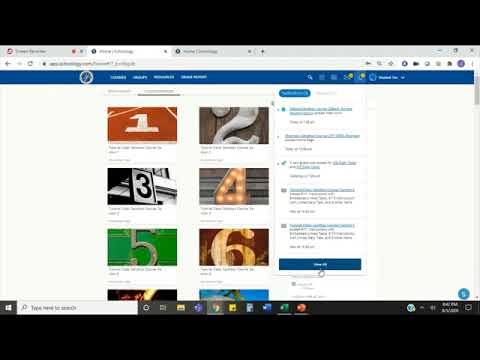
The staff member instructed users to click the bell icon in the upper right of the screen next to their name to open notifications. "The notifications are right next to your name and it's denoted by a little bell," the staff member said. The presenter noted that a yellow circle with a number indicates new notifications and a blue dot marks the newest items.
After opening notifications, users can select "View all" to see every recent alert or choose a specific category to narrow results, such as grades posted or comments on submissions. The presenter demonstrated selecting "grades" to show when grades were posted and which assignments they applied to.
To change which notifications are delivered, the staff member directed users to click their name in the upper right, choose Settings, then the Notifications tab. From that page users can enable or disable categories and choose to receive notifications by email. The presenter also explained the optional text message setup: users can click the link on the Notifications page, enter a cell phone number and their carrier to receive texts.
This presentation was instructional only; no policy changes or formal district actions were discussed or taken during the recording. The staff member closed the tutorial by urging viewers to use the notification settings to stay current. "So if you really wanna stay up to date with Schoology, check out those notifications and make sure that you stay up to date," the staff member said.