Enable push, email and mobile notifications in Schoology app
Summary
A presenter demonstrates how to turn on and customize push, vibration and LED notifications in the Schoology mobile app and how to manage which devices and notification types receive alerts.
Presenter, a video instructor, demonstrated how to enable and customize notifications in the Schoology mobile app, showing step-by-step how to turn on push, vibration and LED alerts and how to manage which devices receive which notification types.
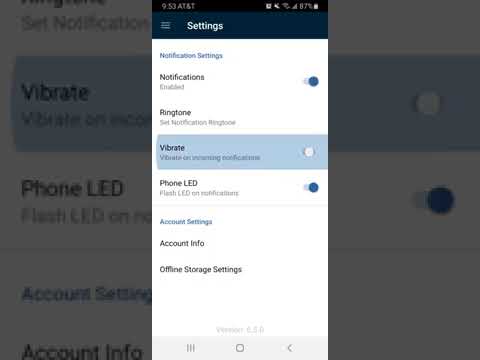
The presenter said users should "click on the 3 bars in the upper left hand corner and scroll down until you see settings." Under Settings, the presenter instructed to toggle the notification switch to enable or disable app notifications. "Right now, you can see that my notifications are disabled," the presenter said, then enabled them by pressing the button to the right.
The presenter showed additional options for vibration and flash LED notifications and explained those can be toggled off if a user does not want them. To choose which specific notifications to receive, the presenter demonstrated going to Account Info and then to Notifications. On that page, the app will list which devices are receiving push notifications and allow turning on or off email or mobile notifications for different Schoology features.
The presenter cautioned users to review the list so their phone "isn't going off constantly or it is going off constantly so you make sure you don't fall behind." The video is a brief how-to intended to help students, parents and teachers control Schoology alerts and tailor them to personal preference.
The tutorial did not provide technical troubleshooting steps, device-specific settings outside the app, or contact information for district support.
AI generated
The text on this page is AI generated. Summaries, highlights, analysis, and video transcripts are all produced from the original source material.
AI can make mistakes, so if you spot one, and we will fix it for everyone.
Note: the source content is unaltered by us. Any content source we link to, be it a video, an audio recording, or a document, is presented exactly as its publisher released it. That publisher is usually a government body, sometimes an individual official or another organisation.