Get Full Government Meeting Transcripts, Videos, & Alerts Forever!
Get email alerts on the Education Edtech topic
No spam. Unsubscribe anytime.
How to check grades in the Schoology app
Summary
A short instructional video demonstrates two ways to view course grades in the Schoology mobile app, how grade pages are organized and what an asterisk on an assignment means.
An unidentified presenter demonstrated two ways to view course grades in the Schoology mobile app and explained what the app’s grade page displays.
The video shows step-by-step navigation for both methods and notes that an asterisk indicates an ungraded assignment, a detail students and parents can use when tracking coursework.
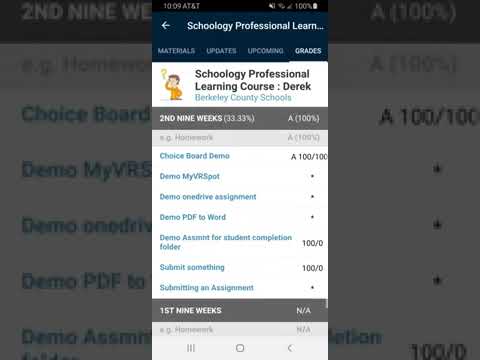
Viewers can use either the app sidebar or the course page to reach grades. The presenter said, "So you have 2 options to access your grade." The first method is to tap the three bars in the upper-left corner, select "Grades" on the sidebar and then choose the course. The second method is to open the course from the home screen and tap "Grades" in the upper-right corner.
Once on a course’s grade page, the presenter said users will see the overall course grade at the top, any semester exam grade if present, and grades for the nine-week periods. Within a nine-week period, grades are broken down into individual assignments with the score received. The presenter explained, "If there is an asterisk, then that means that your assignment has yet to be graded and you are just waiting on your teacher to grade that assignment."
The video runs about a minute and a half and closes after reiterating the two navigation options and thanking viewers.