Get Full Government Meeting Transcripts, Videos, & Alerts Forever!
Get email alerts on the Schoology Messaging topic
No spam. Unsubscribe anytime.
Access and send messages in the Schoology app
Summary
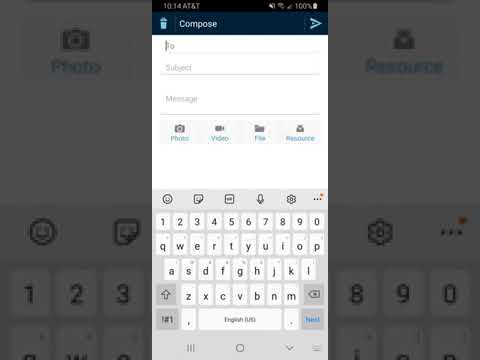
A Berkeley County Schools staff member demonstrated how to open the Messages panel, compose a new message, select a recipient as you type, add a subject and body, and attach files or resources in the Schoology mobile app.
A staff member with BERKELEY COUNTY SCHOOLS demonstrated how to access and send messages in the Schoology app in a short instructional video. "In this video, I'm gonna show you how to access your messages and send messages on the Schoology app," the presenter said.
The demonstration showed the messaging workflow: once logged in, tap the three bars in the upper-left corner, select Messages at the top of the sidebar, and open your inbox. To compose a new message, tap the plus sign in the upper-right corner. "If you have any messages, you will see them in your inbox. Or if you want to send a message, you will need to click on the plus in the upper right hand corner," the staff member said.
When composing, type the recipient's name; as you type, matching names populate and can be selected. Add a subject line and the message body. The presenter also demonstrated attaching media or files: "If you need to upload a photo, video, file, or item from your resource, you can also do that within your messages," the staff member said.
The video closed with a reminder to use the Messages tab on the app sidebar to manage and send communications. The instruction was presented as a how-to demonstration and did not include policy changes, formal actions, or statements by named district officials.