Get Full Government Meeting Transcripts, Videos, & Alerts Forever!
Get email alerts on the Education Technology topic
No spam. Unsubscribe anytime.
Berkeley County Schools shows two ways to open Schoology calendar
Summary
A Berkeley County Schools tutorial explains two methods students can use to view assignment due dates in the Schoology app: the Upcoming list on the home screen and the Calendar view accessed from the menu.
A Berkeley County Schools staff member demonstrated two ways students can view assignment due dates in the Schoology mobile app and walked through steps to switch between a list view and a calendar view.
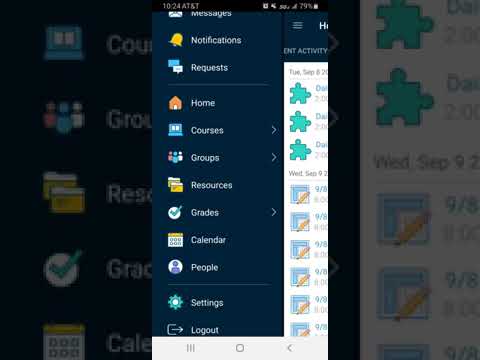
The presenter said students can “click on the upcoming tab in the right hand corner” to see a list of upcoming assignments with dates and times and can tap an assignment to go directly to it. As an alternative, the presenter advised tapping the three-bar menu in the upper left, selecting Calendar, navigating to the desired date and tapping that date to list assignments due that day.
The presenter used Sept. 8 as an example start date when showing how to navigate the calendar and noted that users can return to the Upcoming tab to see the same list view shown on the home page. The tutorial emphasized using the app’s built-in views to keep track of due dates and to open assignments directly from either view.
This video is instructional rather than a policy communication; it provides step-by-step directions for students using Schoology to monitor and access coursework.