Lifetime Citizen Portal Access — AI Briefings, Alerts & Unlimited Follows
Salt Lake City School District demonstrates parent portal student registration
Loading...
Summary
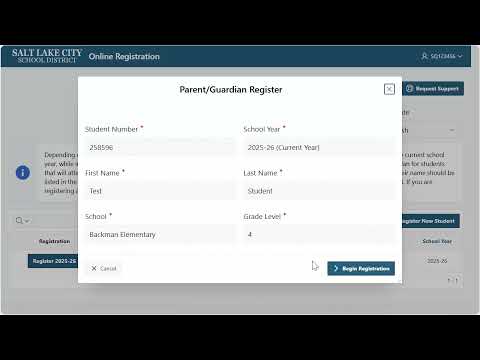
The district provided a short demonstration showing how parents or legal guardians can use the Parent Portal to register students, verify grade and school assignments, add new students who have not previously attended the district, and sign out after completing registration.
Salt Lake City School District staff released a brief demonstration explaining how parents and legal guardians can use the district’s Parent Portal to register students for school. The demonstration walks users through signing in, confirming a listed student’s grade and school, beginning registration for that student, adding new students who have never attended the district, contacting the student’s school for help, and signing out when finished.
The demonstration matters because using the Parent Portal correctly ensures students are linked to the correct school and grade before completing online registration. The video notes that only a student’s mother, father or legal guardian will appear in the list of students associated with a Parent Portal account and that users should verify school and grade information before beginning registration.
The demonstration’s instructions are presented step-by-step. Viewers are told to click the “Register with your Parent Portal login” button, enter their Parent Portal username and password on the portal login screen, and then return to the online registration page. Once logged in, the page will list students associated with the Parent Portal account; parents or guardians should confirm each listed student’s grade and assigned school and then click the register button next to the student to begin that student’s registration.
For children who have never attended Salt Lake City School District, the demonstration shows a “Register New Student” button in the top-right corner of the registration page. The video advises users who cannot find an expected student in their listed accounts or who need additional assistance to contact the student’s school for support.
The demonstration closes by instructing users to click the sign-out button in the top-right corner after completing registration; doing so redirects the user back to the Parent Portal login screen, where they can also sign out. No policy changes, motions or formal actions were presented during the demonstration.