How to submit planning and zoning permits through Delray Beach’s online portal
Loading...
Summary
A staff member outlines step-by-step how applicants can use Delray Beach’s electronic services system to apply for planning and zoning permits, including location entry, required contacts, attachments and signature options, and how to track application status.
Staff member: The electronic services system will let applicants submit planning and zoning permit requests, track progress and receive notifications.
A staff member walked users through Delray Beach’s electronic services system and demonstrated how to prepare and submit a planning and zoning permit application online, explaining the portal’s required fields, attachment steps and signature options.
The portal begins at the Apply button. Users must choose the appropriate application type (planning and zoning, building permits or business tax receipts) or use the top search bar to find the correct form. In the application flow the first required step is to add the property location: search for the property, check the box and click Add, then click Next to proceed to the description field.
Applicants should provide a detailed description of the proposed application in the description box; the presenter said a separate narrative may be attached later in the Attachments step. The system requires that an owner be added as a contact; users can search contacts in the system and mark a contact as a favorite by clicking the star next to the name to make future selections easier.
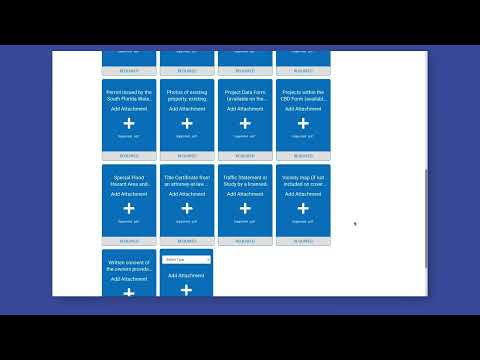
The staff member explained that the next screens collect additional application details and that each required attachment must be uploaded by clicking the plus sign and selecting the correct file. A checklist of required supplemental forms is available on the website and must be completed and uploaded through the portal. When all files are uploaded, applicants proceed to the signature step.
For signatures the presenter described two options: type the name in the first box and either draw a signature with the mouse in the second box or enable a toggle and type the name as the signature. After signing, users review the submission and click Send; the presenter confirmed that once submitted the application will show a status timeline in the portal so applicants can follow progress and receive notifications.
No formal decisions or policy changes were made during this guidance; the audio was instructional. The instructions summarized above reflect the staff member’s step-by-step demonstration of the online permit submission process.