Get Full Government Meeting Transcripts, Videos, & Alerts Forever!
Get email alerts on the Online Permits topic
No spam. Unsubscribe anytime.
How to submit and track permit and license applications online
Summary
An unidentified staff member walked through steps to submit, sign and track planning, zoning, business tax and construction permit applications using the city’s online portal, describing required fields, contact selection, document uploads and final submission confirmation.
A staff member explained how to use the online application portal to submit and track planning, zoning, business tax and construction permit requests.
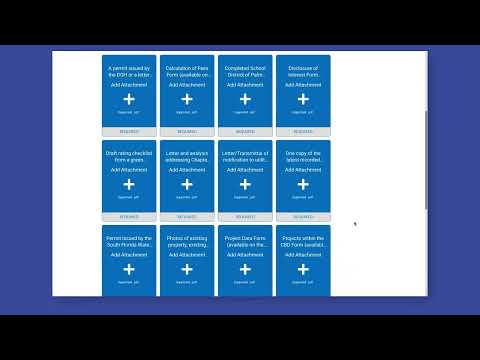
The presenter said applicants should click the “Apply” button on the portal, add the application location, select or add an owner/contact, complete required form fields and upload supporting documents. The presenter described a multi-step process that includes a required signature field, a review step, and a final “Submit” action that produces a success confirmation and allows applicants to track their application status.
Why this matters: the portal centralizes applications for several permit types — planning, zoning, business tax and construction — and provides applicants with notifications and a status-tracking screen to follow each step of their submission.
According to the presenter, the portal’s sequence includes adding a location, choosing or creating a contact (the portal allows marking a contact as a favorite via a star icon), entering descriptive information about the application, uploading each required document using the file-select button, completing any site-specific or additional mandatory forms, and signing the application electronically before submitting. The presenter noted that the system will prompt applicants to review their entries and then click a “Submit” button to complete the process.
The presenter also described an explicit step count (referred to as “step 5” in the demonstration) and said the portal displays the application workflow so users can follow progress after submission. The explanation included how to search for an existing contact in the system rather than creating a duplicate and how marking a contact as a favorite simplifies future submissions.
No formal actions, votes or policy changes were reported in the presentation. The session was instructional: it provided procedural guidance for using the portal but did not adopt rules or direct staff to take additional steps.
Practical takeaways for applicants: use the portal’s “Apply” button for the correct application category (planning, zoning, business tax, construction), add the correct location and contact information, upload required documents at each document prompt, complete the mandatory signature box, review the application using the portal’s review option, and click “Submit” to receive confirmation and enable status tracking.