Get Full Government Meeting Transcripts, Videos, & Alerts Forever!
Get email alerts on the Permits Inspections topic
No spam. Unsubscribe anytime.
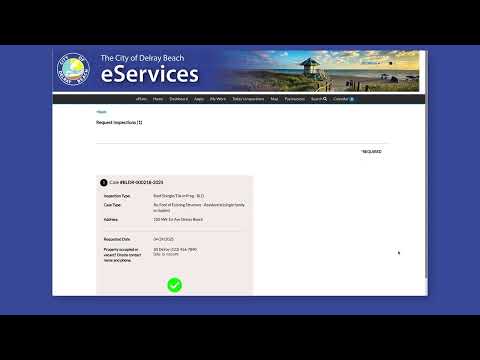
Staff explains how to schedule permit inspections and upload documents in online portal
Summary
A staff member described step-by-step how applicants can schedule inspections, choose dates and times, provide contact information, indicate site occupancy, submit or cancel inspections, and upload required documents through the online permit portal.
A staff member outlined how applicants should schedule and manage permit inspections through the online permit portal, including selecting inspection types, choosing dates and AM/PM times, entering contact information, indicating whether a site is vacant or occupied, submitting or canceling inspections, and uploading required documents.
The guidance matters because correct scheduling and timely document submission help ensure inspections proceed without administrative delays and that required materials are available for review.
According to the explanation, users open the permit record and select the inspection button for the inspection type needed for their permit. They then choose a date from a calendar widget and pick AM or PM. The portal provides fields to enter a contact name, phone number, or an email address in a contact box so inspectors can reach the site contact. The presenter said applicants should indicate whether the work site will be vacant or occupied at the scheduled time.
After entering the date, time and contact details, users click submit. The staff member said the system will schedule the inspection and return the user to the permit page; users can also cancel a scheduled inspection if necessary. For inspections that require document review, the presenter said the action button offers an option to upload documents; users click "Attach" (or the equivalent attachment button), select a file from their computer, and open it to upload. The presenter noted that for certain inspections the upload is required and that the inspection status changes to reflect that documents are under review once the file is successfully uploaded.
The walkthrough described the portal's default behavior: when a document is attached and submitted, the inspection status updates to a review state. The staff member also described a button that returns users to the permit page after uploading files.
No formal action, motion, or vote was recorded in the transcript. The session was instructional: the staff member demonstrated portal steps and explained where applicants can cancel inspections and how to ensure required attachments are provided for inspections that mandate document submission.
Users with questions were told to use the contact fields in the permit record or to call the number provided in the portal; the transcript did not specify a departmental phone number or email address. The staff member did not announce any changes to policy or fees during the demonstration.