Get Full Government Meeting Transcripts, Videos, & Alerts Forever!
Get email alerts on the EServices Registration topic
No spam. Unsubscribe anytime.
Staff member explains how new users register for eServices portal
Summary
A staff member outlined step-by-step instructions for new users to register for the eServices system, including email verification, optional two-step authorization, and linking existing ePlans permits to the eServices dashboard.
A staff member walked through how new users should register for the eServices system and how existing ePlans accounts can be linked to show permits in eServices.
The presenter said users must create an account, verify their email with a code sent to them, and may choose an optional two-step authorization method for login. "All new users must register for the e services system," the staff member said. They added that eServices registration "will allow you to submit applications, track their progress, and receive important notifications throughout the process."
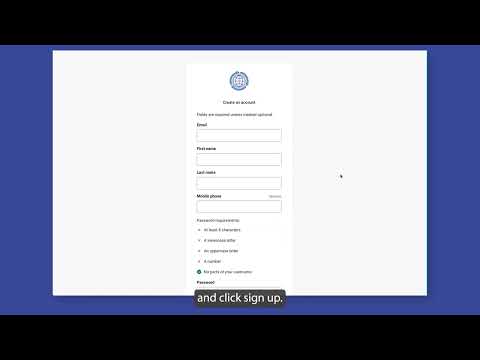
The staff member recommended that users who already have an ePlans account register for eServices with the same email address so any ePlans permits linked to that email will appear in the eServices dashboard after registration. The presenter described the registration clicks in order: click "create an account," fill in the information, sign up, copy the verification code from the email into the verification box, and click "verify."
The presenter's instructions noted an optional two-step authorization (referred to in the talk as "2 step authorization") with three selectable types; choosing one is optional. After verification, users complete personal contact and address information, submit, and are logged into a dashboard. To log out, the presenter said, click your name at the top right and choose "logout."
These remarks were instructional; no formal action, motion, or policy decision was taken during the presentation. The staff member's guidance covered the full sequence from account creation through dashboard access and sign-out, and emphasized using the same email for ePlans and eServices to see previously linked permits.