Get Full Government Meeting Transcripts, Videos, & Alerts Forever!
Get email alerts on the Inspections E Services topic
No spam. Unsubscribe anytime.
How to schedule field and document inspections in Delray Beach e-Services
Summary
City staff walked permit holders through scheduling two inspection types in the City of Delray Beach e-Services system: on-site field inspections and document (PR) inspections, including how to request, upload required files and check status.
Staff member, a City of Delray Beach staff member, explained how permit holders can request and track the two inspection types available in the city’s e-Services system: on-site field inspections and document inspections (listed as PR for prerequisite inspections).
The two inspection types begin in the same place in the portal. Staff member said permit holders should log in, open the My Work tab, select My Permits, locate the permit using the search or drop-down filters, and click the Inspections button for that permit.
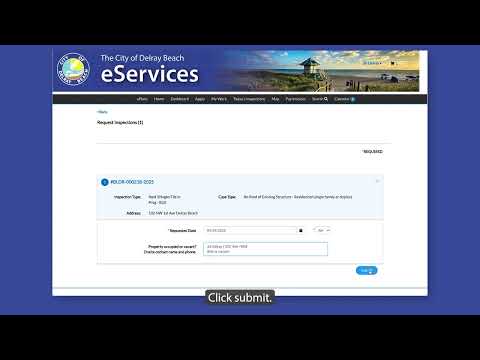
For a field inspection, select the action button next to the needed inspection and click Request Inspection. Choose a calendar date and AM or PM, enter an on-site contact name and phone number, note whether the site is occupied or vacant, then click Submit. The scheduled field inspection may be canceled from the permit page if plans change.
For a document inspection (also called a prerequisite inspection and listed with “PR”), select the inspection and click Request Inspection. Because document inspections require review of uploaded paperwork, staff instructed users to choose today’s date and click Submit, then return to the permit page and open the inspection listed under Existing Inspections.
On the inspection details page the default status will show Upload and Submit when no files have been attached. Click the Attachments button, add the required file(s) from your computer, and then click Submit. After the files are uploaded and submitted, the inspection status will change to Review Document, indicating the documents have been submitted for staff review.
Examples of document inspection materials given by staff include affidavits, soil test reports and treatment reports. The tutorial cautioned permit holders to be sure to click Submit after uploading attachments so the inspection status updates to Review Document.
The steps described are procedural instructions for using the e-Services portal and do not themselves constitute a permit decision or approval.