Delray Beach staff walk users through e-services planning and zoning permit application
Loading...
Summary
A City of Delray Beach staff member demonstrated step-by-step how to submit and track planning and zoning permit applications through the city's e-services system, including required owner contact, attachments, signature options and application checklist.
A staff member provided step-by-step instructions for submitting planning and zoning permit applications through the Delray Beach e-services system.
The demonstration explained how applicants can start by clicking the "apply" button, add a location, enter a detailed description of the proposed request, attach required documents and supplemental forms, add an owner contact, sign the application and submit it. The staff member said applicants can track application progress and receive notifications through the system.
The demonstration began by showing that the e-services system groups application types under categories such as business tax receipts, building permits and planning and zoning permits, and that applicants can also use the search bar to find the correct form. "Click the apply button," the staff member instructed, noting that a timeline at the top of the application guides users through each step.
On the location step, applicants should search for and select their parcel or address, then click the checkbox and add it to the application. The staff member emphasized that the application requires a detailed description of the proposed use; applicants may attach a separate narrative as an additional file at the attachments step.
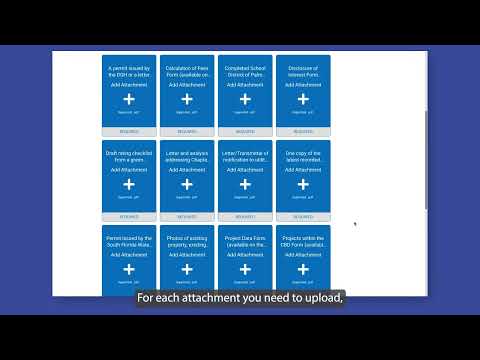
The staff member explained that applicants must add an owner as a contact in the system. Contacts can be searched and added; marking a contact with a star adds it to a "My Favorites" tab for future use. For attachments, users click the plus button, choose the correct files and upload them; an application checklist and supplemental forms are available on the city website and must be uploaded where indicated.
When all files are attached, the applicant must provide a signature. The staff member demonstrated two signature options: draw a signature with a mouse or toggle to type the name in the signature box. After reviewing the application, users click "submit." The staff member concluded the demonstration by confirming, "Your application was successfully submitted," and reiterated that applicants can follow along with the application's progress.
The presentation focused on the mechanics of using the e-services portal; no policy changes, motions or formal decisions were made during the demonstration. For more information and to access supplemental forms, the staff member directed users to the city website.