
Cal Waters tutorial shows how to complete and submit annual water-right reports online
Get AI-powered insights, summaries, and transcripts
Subscribe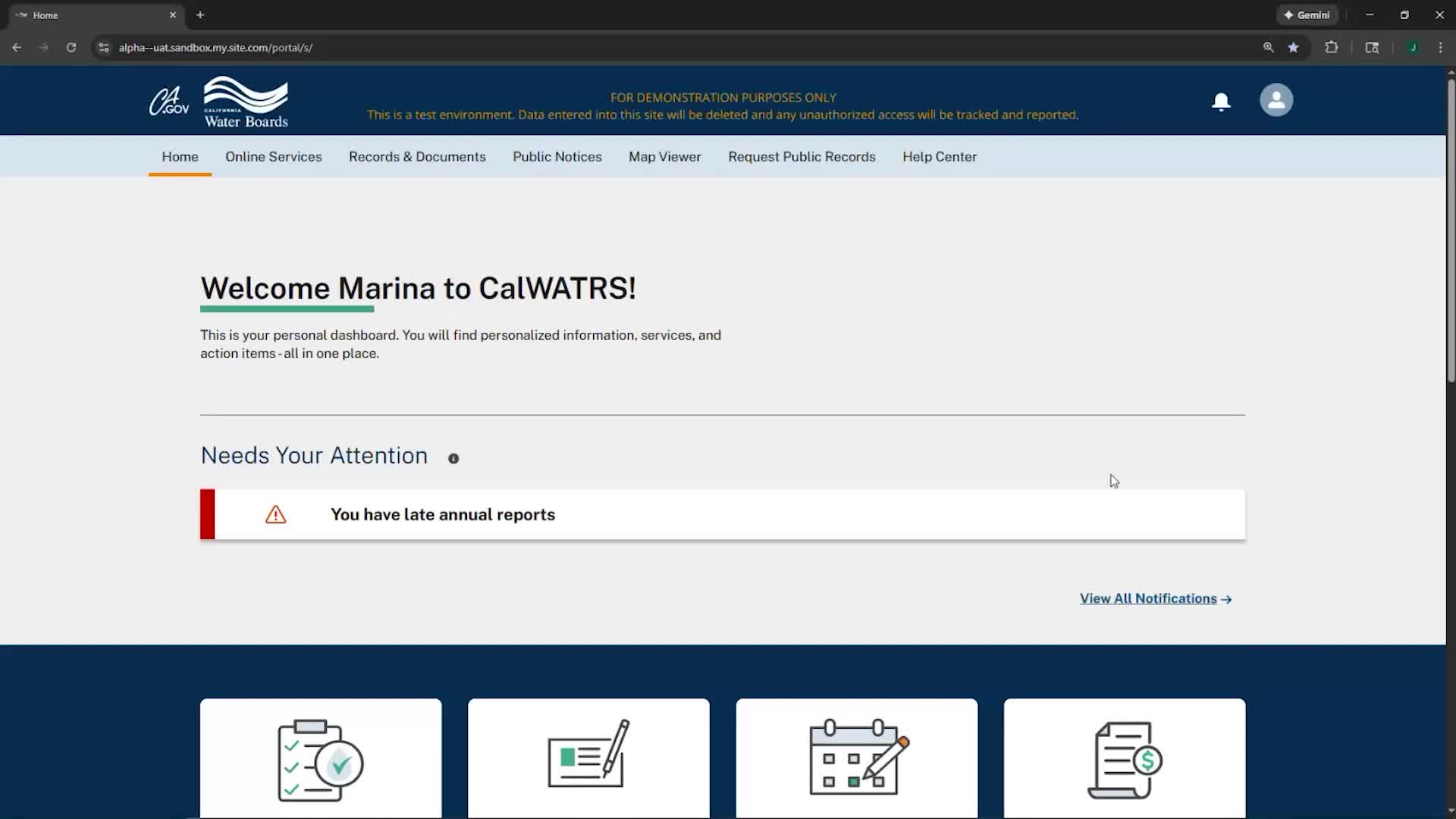
Summary
A Cal Waters tutorial video walks users through starting, saving, amending and submitting annual water-right reports in the online system, explains units and optional templates, and highlights SB 88 measurement questions and device‑registration limits.
A Cal Waters tutorial video demonstrates how water-right holders can start, complete, amend and submit annual reports in the online system.
The video, presented as a step‑by‑step walkthrough, guides users from the My Annual Reports tab to the Basic Information section, shows how to enter monthly diversion amounts and select reporting options (including an option for holders who did not divert water), and explains how to save, download PDFs and finalize submission. “This video is to guide Cal Waters users on filing annual report,” the Presenter says at the start of the demonstration.
Why it matters: timely and accurate annual reporting is a statutory requirement for many water-right holders and the tutorial highlights measurement-reporting questions tied to SB 88, which affect how some holders must provide device data or monthly flow values.
Key steps and details
The Presenter demonstrates selecting a single water right to reveal all available years, using a dropdown and the “complete now” action to begin the 2025 report, and using the same workflow to amend prior years. Users can create a PDF of a partially completed report to share or archive before submission.
On the data-entry pages, the system prompts users to choose between three reporting pathways (typical diversion, did not divert, or a reservoir‑specific option for large storage holders). After choosing the general reporting option, users pick volume units — gallons or acre‑feet — and the system converts gallons to acre‑feet for staff on the back end. The Presenter notes, “If you report in gallons, the system will automatically convert this to acre feet for staff on the back end.”
Measurement and device guidance
The tutorial includes the measurement-device section and explicitly ties those questions to SB 88 measurement requirements. The Presenter says these measurement templates are suggestions and optional for this year: template files download as Excel spreadsheets showing preferred formats but are not mandatory. The video clarifies that device records cannot be added or managed within the annual-report form itself — devices are their own records — and references a separate video on managing measurement devices.
Navigation, saving and warnings
The Presenter repeatedly emphasizes saving each completed section and warns that returning to a previous section without saving can lose partially entered data. A section-level summary appears under each section to show totals as users proceed.
Final review and submission
Before submitting, users must review their entries, check a box declaring the information is true and accurate and type their registered name as an electronic signature. “As soon as you click submit, this water right data report has been submitted,” the Presenter says, noting that the confirmation number shown is unique to that annual report (not the underlying water right). After submission, the system shows the report status as completed and users may log out.
Further help and caveats
The video advises contacting the measurement reporting section for questions about SB 88 compliance or device requirements and points users to a separate device-management tutorial for adding or updating measurement devices. It also flags current UI limits, such as only one storage location appearing in the report when multiple storage locations exist; users are instructed to describe additional locations in the provided fields if needed.
The tutorial is procedural and informational: it does not change reporting requirements but aims to reduce user errors when completing online annual reports.