Lifetime Citizen Portal Access — AI Briefings, Alerts & Unlimited Follows
Tutorial explains how to create a GEARS account for groundwater reporting to the State Water Resources Control Board
Loading...
Summary
A brief instructional video walks users through creating a GEARS account, adding a correspondence ID from the State Water Resources Control Board, selecting the correct account type (usually 'reporter'), and confirming the verification email to activate the account.
Amanda, presenter, opens a short tutorial on creating an account in the GEARS portal for people required to report groundwater pumping to the State Water Resources Control Board. "My name's Amanda. And in today's video, I'm going to go over how to create an account in gears," she says, then shows the steps viewers should follow.
The video targets pumpers who "pump more than 2 acre feet per year cumulatively between all of their wells or people who own wells and use water for non domestic purposes." Viewers are instructed to locate the correspondence ID printed on a letter from the State Water Resources Control Board; that ID appears in the top-right corner of the letter.
Amanda demonstrates the GEARS wizard: enter your name, add the correspondence ID (a plus button lets you add multiple IDs), and review the parcel list the portal displays. She points out an "edit parcels" button to add or remove parcels tied to the correspondence ID. Next, select the eligibility option that applies (ownership of wells that cumulatively pump over 2 acre-feet per basin or pumping for non-domestic uses), click "I understand," and submit to proceed to account creation.
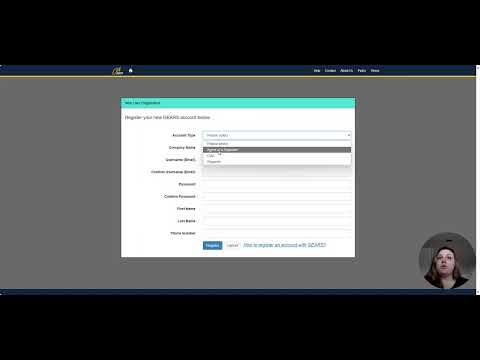
On the account creation screen, the correspondence ID auto-fills. Amanda shows required fields: choose an account type (most users select "reporter," those representing others use "agent of reporter," and GSAs select "GSA"), set a password, provide either a company name or a first and last name, and add a phone number. After clicking "Register," the portal shows a verification prompt saying a confirmation email has been sent.
Amanda emphasizes account activation: "You will not be able to get into your account if you do not click that Confirm button." She advises checking junk, spam, or other filtered folders if the email does not appear. After confirming the email, users are brought automatically into their account. Once logged in, Amanda notes users can add wells, make adjustments, and add additional correspondence IDs.
As an alternative, Amanda demonstrates clicking "Register New Account" to reach the same registration page without going through the wizard. The video closes with a brief sign-off: "I hope that helps." The tutorial contains step-by-step visuals and on-screen buttons to follow the same flow described in the video.
The video is instructional rather than a public hearing or decision document; it does not contain motions, votes, or policy determinations. It is intended to guide compliance with the State Water Resources Control Board's reporting process.