Lifetime Citizen Portal Access — AI Briefings, Alerts & Unlimited Follows
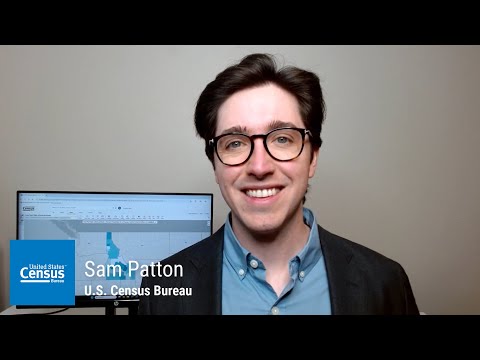
Sam Patton walks through mapping tools on data.census.gov
Loading...
Summary
In a recorded tutorial, Sam Patton demonstrates how to map table data on data.census.gov, including selecting geographies, switching layers and years, customizing classifications and base maps, exporting GeoJSON, and printing or sharing map views.
Sam Patton, a presenter, walked viewers through the mapping features available on data.census.gov and demonstrated how to visualize table data for different geographic levels and timeframes. He used table S1501 (educational attainment) for Idaho as an example and confirmed the table was set to 2023 American Community Survey (ACS) five-year estimates.
Patton said the site’s Maps tab (or More Tools → Map) displays the variable chosen in the table and updates the legend and map when a different measure is selected. "After you've found the data you need in 1 of the tables in data.census.gov, a great way to visualize that data is by using the mapping capabilities found in the site," he said, then demonstrated changing the mapped variable to "population 25 years and over, high school graduate, includes equivalency." He also emphasized a key constraint: "Right now, there isn't a way to view the data for the counties at the same time that I view the data for the metro area as the map can only show the data for 1 type of geography at a time."
The tutorial covered tools to manage geographies on the map. Patton demonstrated the Select tool (rectangle by default) and showed the dropdown to choose box, circle or lasso selection shapes, explaining, "Whichever shape you choose, remember that any geography that it touches will be selected." He also explained how to deselect individual geographies and how the Clear Geos button removes all selected geographies and clears the map.
Patton demonstrated the Layer Select control to switch geographic levels (for example, from metropolitan/micropolitan area to county) and showed that switching the layer changes both the map display and the table panel to list geographies at that level. He demonstrated the Year button and Dataset button to toggle between years and between 1-year and 5-year ACS estimates, and said he would stick with the 2023 five-year estimates for the demo.
The presenter reviewed visual customization options: base maps (basic, detailed, or none), color palettes and transparency, and classification methods (Natural, Quantile, Equal Interval, Manual). He pointed out controls to change the number of classes and view summary statistics such as the mean and standard deviation for the mapped variable.
Patton also demonstrated the Identify tool (click a geography to view metadata, including geo ID) and used Teton County to show it is part of the "Jackson, Wyoming, Idaho micro area." He showed the GeoJSON export, noting the file can be loaded into mapping software like ArcGIS, and explained the Notes feature for technical documentation. The Table panel shows only the estimates that are currently mapped at the chosen geographic level and updates when the layer is changed. "The Charts feature lets users visualize census data in flexible, interactive ways that go beyond maps and tables," he said, describing bar, column and line chart options.
Finally, Patton demonstrated the Print button (generate a PDF of the map view including the legend) and the Share panel (copy a link, email it or share via social media). He closed the tutorial by directing viewers to the site’s resources page for additional guidance and thanked viewers.
The recording provides a step-by-step walkthrough for users who want to map ACS and other table estimates on data.census.gov and to export or share map outputs for further analysis or presentation.