Get Full Government Meeting Transcripts, Videos, & Alerts Forever!
Get email alerts on the Court Filings topic
No spam. Unsubscribe anytime.
How court clerks process a new civil case filing in the e‑filing queue
Summary
A training video walks clerks through processing a new civil case filing: matching parties, confirming a $50 justice‑court filing fee, moving payment from an attorney's unapplied receipt account to the case ledger, issuing and annotating the summons, and saving the ROA so the filing is complete.
A training video demonstrates step‑by‑step how to process a new civil case filing in the court’s electronic filing queue. The presenter shows how to confirm payment, match or add litigant records, create the case, issue and annotate the summons, and verify the fee posts to the case ledger.
The instructor begins by opening the pending e‑filing queue and noting one new civil case filing. “In this video, we are going to look at processing a new civil case filing,” the instructor says, and points out the payment record shows a $50 receipt. The video explains that the $50 filing fee for a new civil case at a justice court is reflected in the filer’s payment and that, prior to processing, the funds sit in the attorney’s unapplied receipt account. “By processing the filing, the money will move from the attorney's unapplied receipt account to the case,” the instructor says.
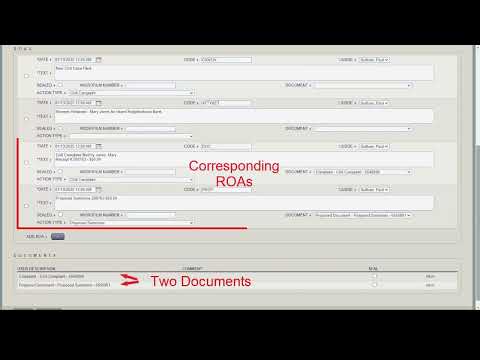
Clerks are shown how to examine each submitted document, verify that the parties on the documents match the filer‑entered parties, and confirm there is an action type for each document (the complaint and proposed summons appear with action types). The presenter demonstrates using the system’s Match Party function to find an exact match for each litigant and instructs staff to expand search criteria if no match appears; if no existing record exists after expanding the search, clerks are told to add the party so the e‑filer’s party details import into the case record.
After matching parties and confirming filing information, the instructor tells clerks to save. If the clerk is signing the summons rather than routing it to a judge, staff should select “Do not route” so the clerk can sign and stamp the document. The video notes that a special ROA code applied to the proposed summons prevents that ROA from receiving a document sequence number and from getting files stamped; clerks are shown how to choose and save the appropriate ROA so the signed summons can be attached.
The presenter next issues the summons through the document service (the same workflow used for paper summons), opens the proposed summons in the document side panel, and uses annotation tools to place a signature and stamps. “Click and hold approximately where you want to place one corner of the signature and then drag the cursor diagonally,” the instructor demonstrates, then selects a stamp from the list and places it on the document. Clerks are shown to repeat stamping until all required stamps are applied, to select the issued‑summons ROA, and to save.
Finally, the instructor refreshes the ROA screen to show the issued summons listed under the Summons Issued ROA and notes that an attorney who is a registered e‑filer and is listed as the attorney on the case can log in to the e‑filing site to download or print the summons. The video closes by saying this provides the basic workflow for processing a new civil case and refers viewers to the next video in the series for handling rejects and acceptances involving payments.
The video’s instructional points emphasize three verifiable actions clerks must take to complete processing: (1) confirm and, if necessary, add or match parties; (2) verify or collect the correct filing fee and confirm the ledger shows the payment moved from the attorney unapplied receipt account to the case; and (3) issue, annotate, and save the summons to the appropriate ROA so the issued summons is retrievable by the e‑filing attorney.