How to create a HARP account to access CMS applications

Centers for Medicare & Medicaid Services (CMS) — HARP guidance · February 11, 2026

Get AI-powered insights, summaries, and transcripts

Subscribe
AI-Generated Content: All content on this page was generated by AI to highlight key points from the meeting. For complete details and context, we recommend watching the full video. so we can fix them.

Summary

A step-by-step walkthrough of creating a HARP account, completing identity proofing (remote via Experian or manual), setting up required two-factor authentication options, and maintaining account access for CMS applications.

Unidentified Speaker, Presenter, walked listeners through how to create an account for HARP — the Health care quality information systems access roles and profile portal — a secure identity management portal used to sign in to many Centers for Medicare & Medicaid Services (CMS) applications. “The health care quality information systems access roles and profile, otherwise known as HARP, is a secure identity management portal provided by the Centers for Medicare and Medicaid Services or CMS,” the presenter said.

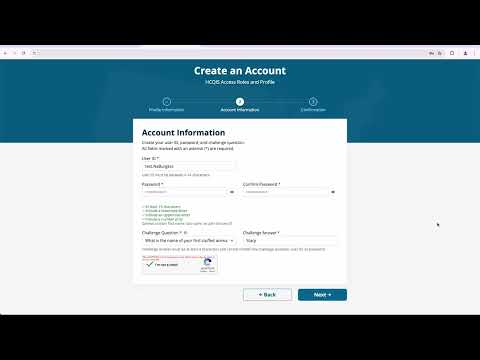
The presentation said an account supplies a user ID and password that can be used to sign in to many CMS applications. To begin registration, users are instructed to click the sign-up link on the HARP login page or go to harp.cms.gov/register; the first page in the portal is the profile information page.

Because HARP credentials can be used to access CMS applications that handle sensitive information, the presentation emphasized that all users must complete identity proofing. Remote proofing is performed through Experian and asks for required profile fields: first and last name, date of birth, personal and business email addresses, home address (city, state, ZIP) and social security number (SSN). The presenter said users who do not wish to enter an SSN may instead initiate manual proofing.

Manual proofing requires sending one approved form of government photo ID and two copies of financial-institution bills or statements to the services and operations support team. The presenter noted manual proofing typically takes longer than remote proofing and therefore is not recommended if remote proofing is feasible.

During account setup users create a user ID and password and provide a challenge question and answer for account recovery. If the identity check succeeds, the user reaches a confirmation page; if there is an error, the presenter advised reviewing profile information and resubmitting.

All HARP accounts must have two-factor authentication (2FA). On first login the portal prompts users to select a 2FA device; the presenter listed Google Authenticator, Okta Verify and Okta Verify Push as supported options and described the flow for receiving and submitting a security code. After adding at least one 2FA device, the presentation said the account setup is complete and users may navigate to their desired CMS application and sign in with HARP credentials.

For support, the presenter instructed users to contact the services and operations support team Monday through Friday, 8 a.m. to 8 p.m., and said an email will be sent confirming account creation. Users were told to log in at least once every 60 days to avoid password expiration and at least once every two years to avoid account deactivation. For additional information the presenter directed listeners to harp.cms.gov/help.

The transcript uses the acronym “EUA” when describing an alternate login option for CMS employees but does not define the term in the recorded text. The presenter also noted that CMS employees may bypass HARP registration and use EUA credentials to log in if eligible.

Next steps: start at harp.cms.gov/register or visit harp.cms.gov/help for troubleshooting and support.