Get Full Government Meeting Transcripts, Videos, & Alerts Forever!
Get email alerts on the Cybersecurity Tools topic
No spam. Unsubscribe anytime.
CISA demonstrates ScubaGear, an automated Microsoft 365 configuration assessment tool
Summary
The Cybersecurity and Infrastructure Security Agency demonstrated ScubaGear, an automated tool that compares Microsoft 365 tenant settings to CISA’s secure configuration baselines, explains installation and required permissions, and shows color-coded HTML, JSON and CSV reports.
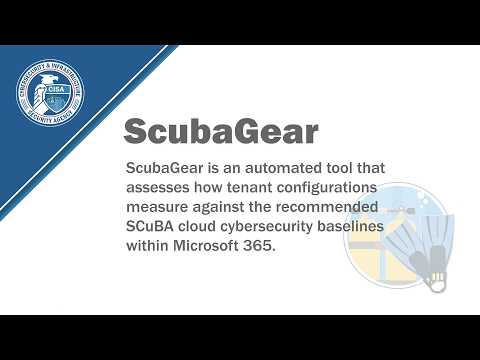
The Cybersecurity and Infrastructure Security Agency (CISA) presented a recorded walkthrough of ScubaGear, an automated assessment tool for Microsoft 365 that compares tenant configurations against CISA’s Secure Cloud Business Applications baselines.
In the demonstration the Presenter described how ScubaGear "compares tenant configurations to CISA’s secure configuration baselines" and noted the tool is intended to reduce the burden of manual policy comparisons for administrators. The demo covered where to find the latest build on the project's public GitHub repository, how to install and run ScubaGear from the PowerShell Gallery, the permissions required for different Microsoft 365 products, and what the generated reports look like.
ScubaGear can run in interactive or non-interactive modes. The Presenter explained non-interactive (automated) runs require an application identity or service principal with certificate-based credentials assigned product-specific permissions and roles, while interactive runs prompt a user to authenticate. For most Microsoft 365 services the minimum interactive role is Global Reader; Power Platform, SharePoint Online and OneDrive require their specific administrator roles. The demo used a test account and a GCC tenant as an example of the M365 environment parameter required when targeting commercial, GCC, GCC High, or DoD tenants.
Installation guidance emphasized using PowerShell 5 for the demo environment because some SharePoint modules are incompatible with PowerShell 7. The Presenter walked through copying install commands from the repository, running the Initialize-SCUBA command, and installing required Microsoft PowerShell modules and the Open Policy Agent (OPA) Rego engine; the README includes alternate steps if OPA installation fails. The Presenter noted that module and OPA installation times vary by machine and network speed.
When an assessment completes, ScubaGear opens an HTML summary and also produces JSON and CSV exports saved to the default output folder. The report lists tenant name, domain, tenant ID and report date. Policy checks are color coded: green indicates a passed policy test; yellow indicates a SHOULD-level test that produced a warning; and red indicates a failed SHALL-level test. The Presenter referenced Internet Engineering Task Force Request for Comments 2119 to explain the RFC meanings of SHALL and SHOULD and pointed out grey items in the report that currently require manual review because they cannot be automatically assessed through the Microsoft 365 APIs.
The Presenter navigated to product-specific views (for example, Azure Active Directory) to show additional details such as tenant licensing information and conditional access policy entries, and said a future ScubaGear update will change references to AAD to "Microsoft Entry ID." For defects or feature requests, the Presenter directed users to the project's GitHub issues page (github/cisa.gov/scubagear) and provided the contact address scuba@cisa.dhs.gov.
The demonstration concluded after a final review of assessment results and instructions for reporting bugs or ideas. The repository README remains the reference for installation prerequisites, execution examples and troubleshooting.